

How credits work — a complete guide to StudioCut.Video pricing
Every AI video tool has a meter running somewhere. Most of them keep it out of sight until the invoice arrives. This guide is the opposite: a screen-by-screen tour of exactly how StudioCut.Video meters your work, where the number appears before you commit, what happens to your credits when a render fails, and the handful of habits that make a balance last noticeably longer.
The short version
If you read nothing else, read this:
- Credits are the meter. One credit is the unit we price AI video production in. Nothing else on the platform consumes them.
- A production is charged once, at the moment you press Create & Start. Not per scene, not per retry, not per download.
- You always see the cost first. The wizard prints the exact figure while you're still configuring, and it moves live as you change your mind.
- A genuine failure is refunded in full, automatically, and the refund shows up in your history next to the original charge.
- Purchased credits never expire. Plan credits last as long as your plan keeps renewing.
The rest of this article is the detail behind each of those, and where in the app you can verify it yourself.
What actually spends a credit
A surprising amount of StudioCut.Video is free to use. Credits are consumed by production — the run that plans your scenes, writes the script, generates the visuals and the voiceover, and renders the finished cut. That's it. Everything you do around that costs nothing:
- Building a draft in the create-video wizard, and leaving it sitting for a week.
- Browsing and organising your media, brand and voice libraries.
- Previewing voices before you choose one.
- Reviewing a storyboard, requesting changes, approving a phase.
- Rewriting a script line or editing a scene inside a production you already started.
- Downloading your finished video — the first time, and every time after.
This matters more than it sounds. It means the exploratory part of the work — the part where you're not sure yet — is not metered. You only pay when you commit to producing something.
The meter is on the screen, before you commit
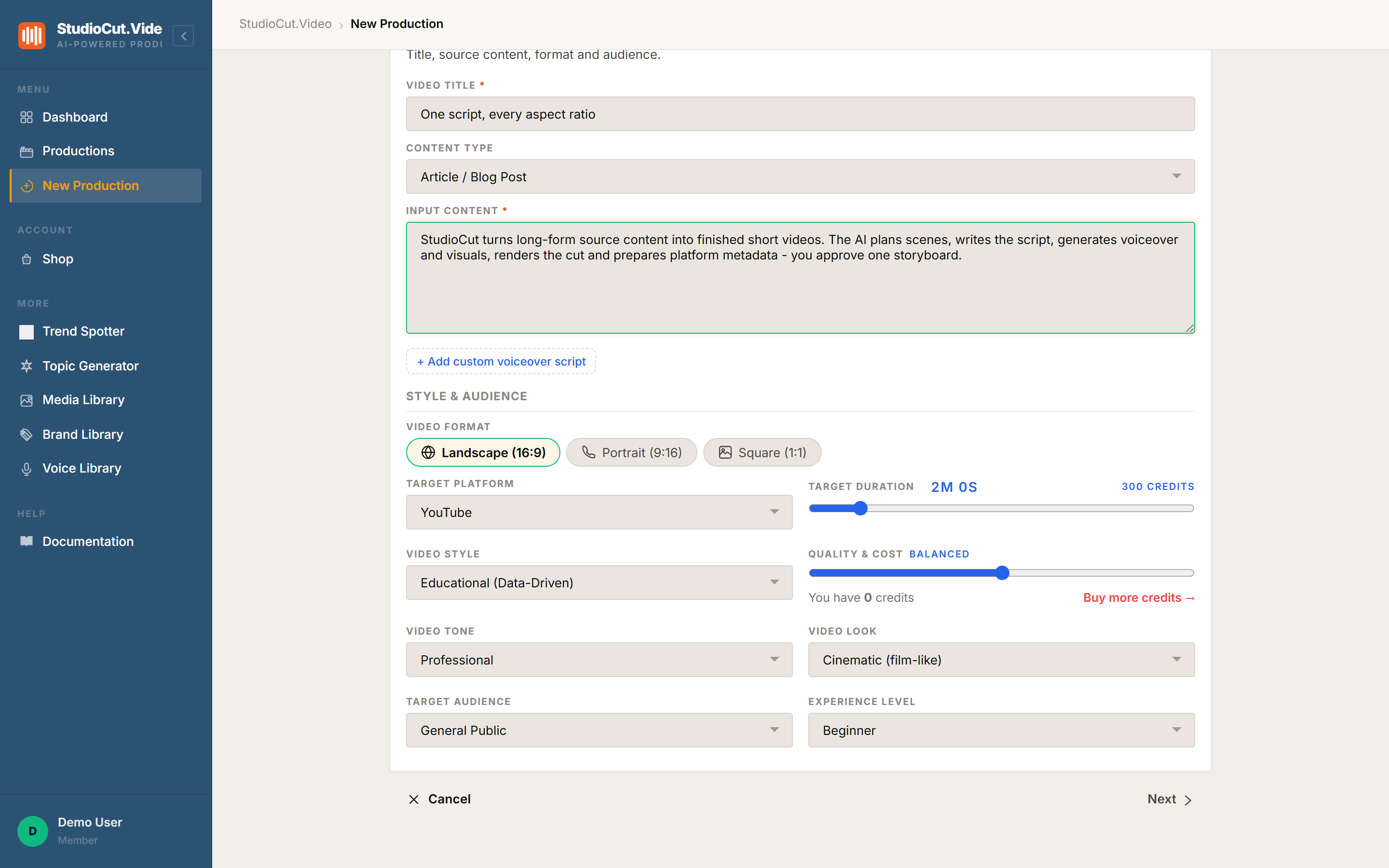
Open the create-video wizard and look at the right-hand column. Beside Target Duration there is a credit figure, and underneath the Quality & Cost slider there's a line telling you how many credits you currently hold. Drag either slider and both numbers respond immediately.
That figure is not an estimate or a range that gets reconciled later against what the AI vendors actually charged us. It is the amount that will be deducted. What you're shown is what you pay.
The four things that move the number
Rather than memorising a price list, it helps to know which dials matter. There are four, and you can watch each one move the meter in real time.
1. Length
The biggest lever, and the least linear one. A video twice as long costs more than twice as much, because the real production cost grows faster than the extra seconds suggest — more scenes to plan, more shots to generate, more voiceover to synthesise, a longer render. Pricing follows that curve in bands rather than a flat per-second rate.
The practical consequence is worth internalising: nudging your duration can step you into the next band, and trimming it can step you back out. If you're near a boundary, move the slider a notch each way and watch where the figure jumps. That one habit saves more credits than any other.
2. The Quality & Cost tier
Five tiers, from Draft through Economy, Balanced and Premium to Showcase. They control which AI models your production is routed to. Draft and Economy use fast, inexpensive models — ideal for finding out whether an idea, a script or a visual style works at all. Balanced is the everyday default. Premium and Showcase route to the most capable models available and earn their cost on something you're actually going to publish.
Your plan sets the ceiling on how far the slider goes. If the tier you want is above it, the wizard shows an upgrade hint rather than silently producing something cheaper than you asked for.
3. Additional languages
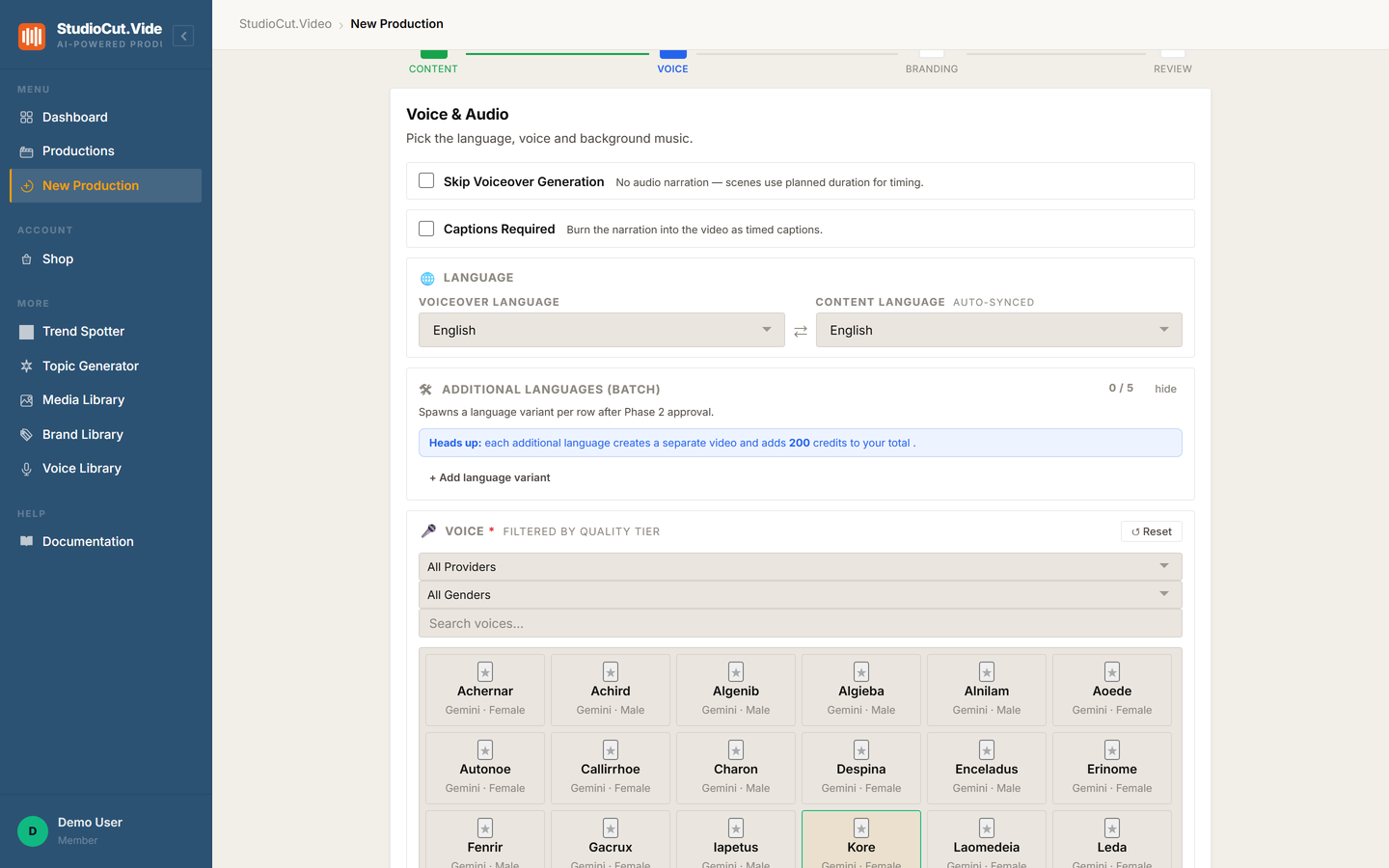
This is the lever people most often underestimate. An additional language is not a subtitle track and not a translation pass — it spawns a complete separate production, with its own visuals, its own voiceover in a locale-appropriate voice, and its own render. So it costs close to what the master video costs.
The wizard is explicit about this. Open the Additional Languages panel and it tells you the per-language figure and the new running total before you add a single row.
4. Input attachments
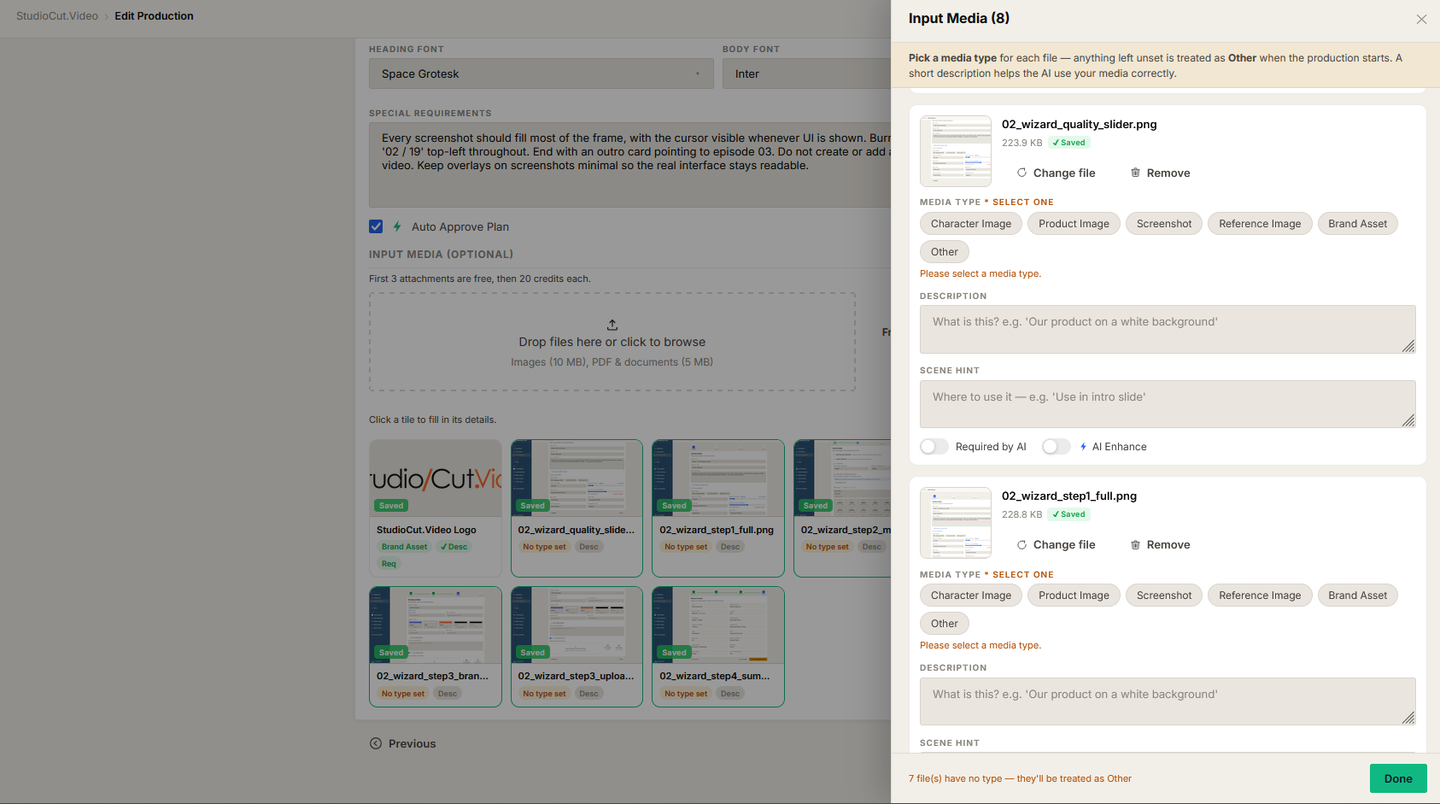
The first few attachments on a production are free. Beyond that allowance, each additional file adds a fixed amount. The Input Media area shows the allowance, the per-file cost, and how many of your attachments are chargeable — updating as you add them.
One detail worth knowing: a logo attached automatically because you selected a brand preset is never counted and never uses up a free slot. You are only charged for files you chose to add.
When you're actually charged
The timing is simple, and it's worth being precise about because it's where most pricing anxiety lives:
- While you build a draft — nothing happens. No hold, no deduction, no reservation. Drafts are free and can sit indefinitely.
- When you move past the Voice step — the wizard checks whether your balance covers the video you've configured. If it doesn't, it tells you exactly how many credits you need against how many you hold, and offers to take you to the Shop. This is a check, not a charge.
- When you press Create & Start — the single deduction happens, for the full amount you were shown.
- Everything after that — regenerating a scene, rewriting a line, swapping a clip, re-rendering, downloading — is included. There is no second charge.
Because a production is paid for in full the moment it starts, a video that has already begun can never stall halfway through for want of credits. Once it's running, it's funded.
What happens when something goes wrong
Pipelines that touch half a dozen AI vendors will occasionally have a bad day. When a production fails for a genuine pipeline reason, the entire amount is refunded automatically — not prorated to the phase that completed, not credited as goodwill after a support ticket. The full charge returns to your balance and the refund appears in your credit history beside the original debit, so you can see it happened without asking anyone.
Retrying doesn't double-charge you either. A production carries one charge for its whole life, so a retry runs on the charge you already paid.
The one exception: input rejected by the content-moderation gate is not refundable. That's a Terms of Service rejection rather than a pipeline failure, and it's the only case where credits are consumed without a video coming out. If you're submitting something you suspect is borderline, read the acceptable-use section of the Terms first.
Two balances, and why they're different
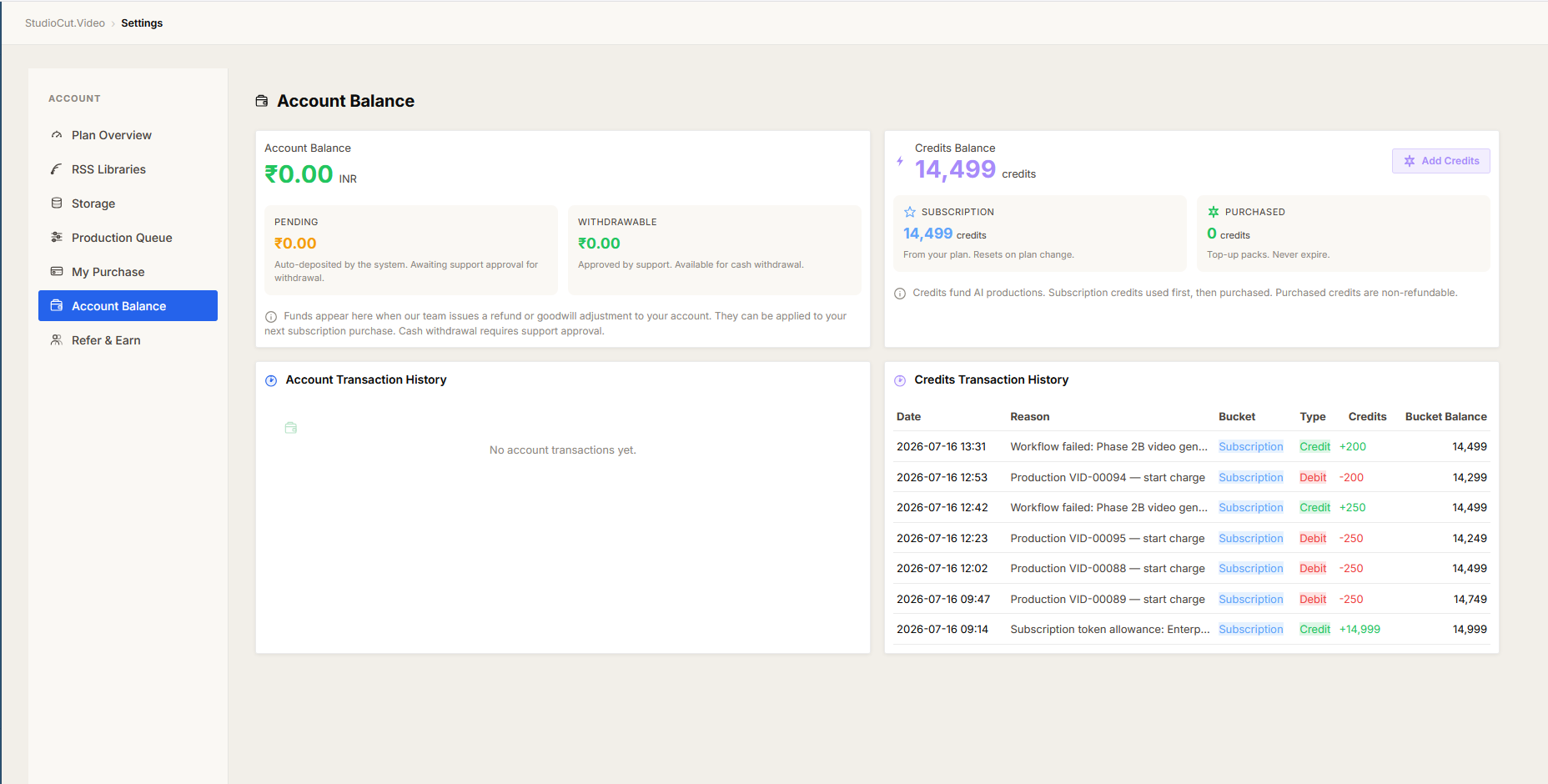
Open Settings → Account Balance and you'll see two cards side by side. They are genuinely different things, and confusing them causes needless worry:
- Account balance is money. It holds refunds, goodwill adjustments and referral earnings, and it's what a cash withdrawal draws on.
- Credits balance is production capacity. It's what videos are charged against. It can't be withdrawn or converted back into money — which is exactly why the wizard shows you a cost before you commit rather than after.
The credits card splits further into two buckets, and the distinction is worth understanding before you change plans:
- Plan credits arrive with your subscription or purchase. They stay in your balance while the subscription keeps renewing — a renewal adds the new allocation on top of what's left rather than resetting you to zero. They are forfeited when you cancel or downgrade, and the app warns you before you confirm.
- Purchased credits are the ones you top up with. They never expire and they survive plan changes, cancellations included.
Spending always draws down plan credits first. That's deliberate: it burns the balance with an expiry condition before it touches the one you bought outright.
Reading your credit history
The Credits Transaction History is the audit trail, and it's designed to be reconcilable line by line. Every row carries a date, a reason, which bucket it touched, whether it was a credit or a debit, the amount, and your balance afterwards. You'll see four kinds of entry:
- Allocation grants — credits arriving from your plan or purchase.
- Top-up purchases — credits you bought.
- Start charges — one per production, each naming the production it belongs to, so you can trace a charge back to a specific video.
- Failure refunds — the automatic returns described above, sitting right next to the charge they reverse.
If a month's spend ever looks wrong, this list will tell you why without a support ticket.
Six ways to make credits go further
None of these involve compromising the finished piece. They're about not spending premium rates on work that's still provisional.
- Iterate cheap, finish expensive. Prove the concept, script and style at Draft or Economy. Then produce the winner once at a high tier. The two-pass approach almost always costs less than getting a Showcase-tier video wrong.
- Watch the meter when you change length. Because duration is banded, a small trim can save more than the seconds suggest. Nudge the slider and look before you settle.
- Produce the master first; add languages after. Each language is a full video. Translating a version you later scrap is the single most expensive mistake available on the platform.
- Keep attachments inside the free allowance unless a file genuinely earns its place. Three well-chosen references usually beat ten hopeful ones — for cost and for output quality.
- Fix, don't restart. Editing a scene or regenerating an asset inside an existing production is included in the charge you already paid. Starting a fresh production to fix one scene means paying twice.
- Use the review gate. Approving a storyboard you're happy with is free; a finished video you're not happy with isn't. Spending two minutes on the plan is the cheapest quality control available.
Where the current numbers live
You'll notice this article names no rates. That's on purpose. We tune pricing over time as models get cheaper and our routing gets smarter, and improvements are passed on to customers — so any figure written into a blog post is a figure that will eventually be wrong.
The app is always the current truth, in three places:
- The Shop — current pack prices and what each plan includes.
- Settings → Account Balance — what you hold right now, split by bucket.
- The wizard's live meter — what the specific video in front of you will cost.
If a number anywhere else ever disagrees with those three, those three are right.
Further reading
- FAQ: credits and pricing — the same ground in short question-and-answer form.
- Pricing & plans — plans, comparison table and add-ons.
- Why your video's price never changes on you — the cost-transparency promise behind the meter.
- The create wizard, step by step — every field in the flow this article measures.
See your own numbers
The fastest way to understand the meter is to open the wizard and drag the sliders. Start a free account — no card required.
Get Started Free