

How the nine input types work
Every StudioCut video starts the same way — you tell the pipeline what kind of source you're feeding it. Step 1 of the Create Wizard asks one quiet question — Topic? Article? URL? PDF? — and your answer decides whether the AI distills your material or guesses at it. There are nine answers, and the same finished, publish-ready video at the end of all of them. Here's what each type expects, how the pipeline treats it, and when to reach for it.
Why the Content Type choice matters
Step 1 of the wizard — Content & Style — opens with a Content Type selector, and the input field directly beneath it reshapes itself to match your choice. That is the whole mechanism, and it carries more weight than it looks: the type you pick tells the planning model in Phase 1 how literally to take what you hand it. Choose Pre-written Script and your wording is treated as final. Choose Topic / Idea and the same box becomes a brief the AI expands from scratch. Pick the wrong one and you either handcuff the AI or starve it.
One thing the choice does not touch is the pipeline itself. All nine types feed the same Phase 1 storyboard, and every video still runs the full five-phase, review-gated production — script, voiceover, scene direction, render, publishing package. What the type changes is interpretation: how much the model writes versus how much it preserves. That dial is what this guide is about.
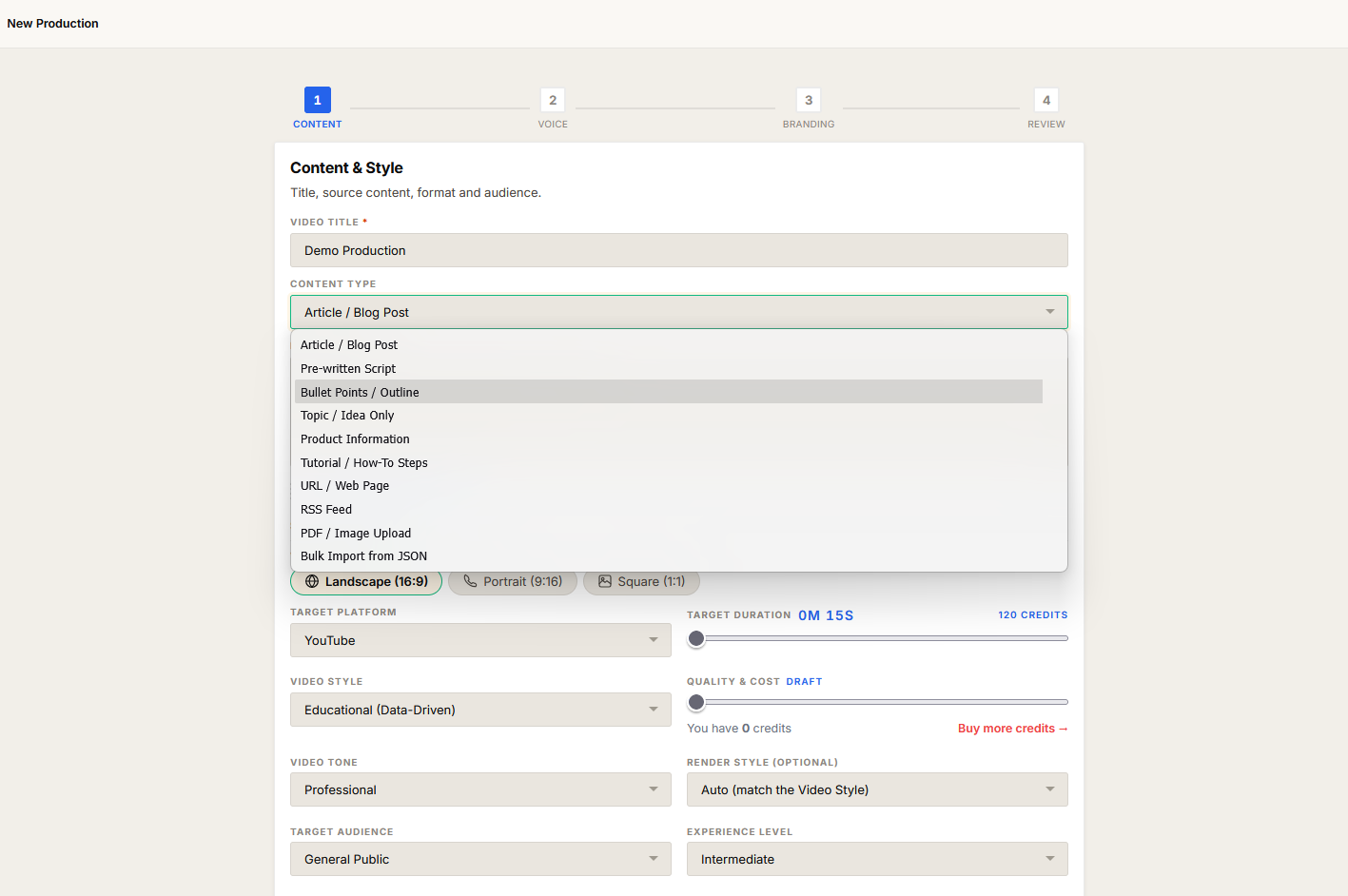
The nine types at a glance
The table below is the quick reference. Read it for the shape of the decision, then jump to the sections after it for the cases that need more nuance.
| Content type | What you provide | How the AI treats it | Pick it when |
|---|---|---|---|
| Topic / Idea | A few words, e.g. "Compound interest in 60 seconds" | Treats it as a brief and writes the whole script | You have a subject but no copy yet |
| Article / Blog Post | A full article pasted in | Distills the article into a video-length narrative | You have long-form copy to repurpose |
| Pre-written Script | Your exact narration | Preserves your wording; builds scenes around it | Wording is final and must not change |
| Bullet Points / Outline | Key beats, one per line | Expands each beat into full narration | You know the structure, not the prose |
| Tutorial / How-To Steps | Numbered steps | Builds a step-by-step instructional flow | The video teaches a sequence of actions |
| Product Information | Specs or a product description | Turns features into a benefit-led pitch | You're selling or demoing a product |
| URL / Web Page | A link to a page | Fetches and distills the page content | The source lives online and you'd rather link than paste |
| RSS Feed | A feed library plus a chosen item | Distills the selected feed item like an article | You produce recurring videos from a publishing feed |
| PDF / Image Upload | One PDF or image file | Reads the document or image as the source material | Your source is a file, not text or a link |
The four text types — how much the AI writes
Topic, Article, Pre-written Script, and Bullet Points all take typed text, but they sit on a spectrum of how much creative latitude the AI has.
Topic / Idea gives the AI the most room. You write a phrase; it writes everything. Use it for explainers and concept videos where you trust the model to structure the narrative.
Article / Blog Post hands over finished long-form copy and asks the AI to compress it. The narrative comes from your article; the AI decides what to cut to hit video length. This is the repurposing workhorse.
Bullet Points / Outline sits in the middle — you supply the skeleton, the AI supplies the muscle. Each beat becomes a scene's narration. Choose it when you care about order and coverage but not phrasing.
Pre-written Script gives the AI the least latitude. Your text is the narration, word for word; the AI only plans visuals and scene breaks around it. Pick this when legal, brand, or factual wording cannot drift.
Topic vs. Pre-written Script — the quick rule: if you would be annoyed to see your sentences rewritten, choose Pre-written Script. If you would be annoyed to write the sentences yourself, choose Topic / Idea. Bullet Points is the honest middle when neither extreme fits.
Tutorial and Product Information — purpose-shaped types
Two types are less about the format of your input and more about the kind of video you want.
Tutorial / How-To Steps expects numbered steps and produces an instructional flow — the AI keeps the steps in order and paces them so each one lands as its own beat. Reach for it whenever the video teaches a procedure.
Product Information expects specs or a product description and reframes raw features as benefits. If you paste a spec sheet under Article instead, the AI distills it as prose; under Product Information it sells. Same text, different intent — pick the type that matches the video's job.
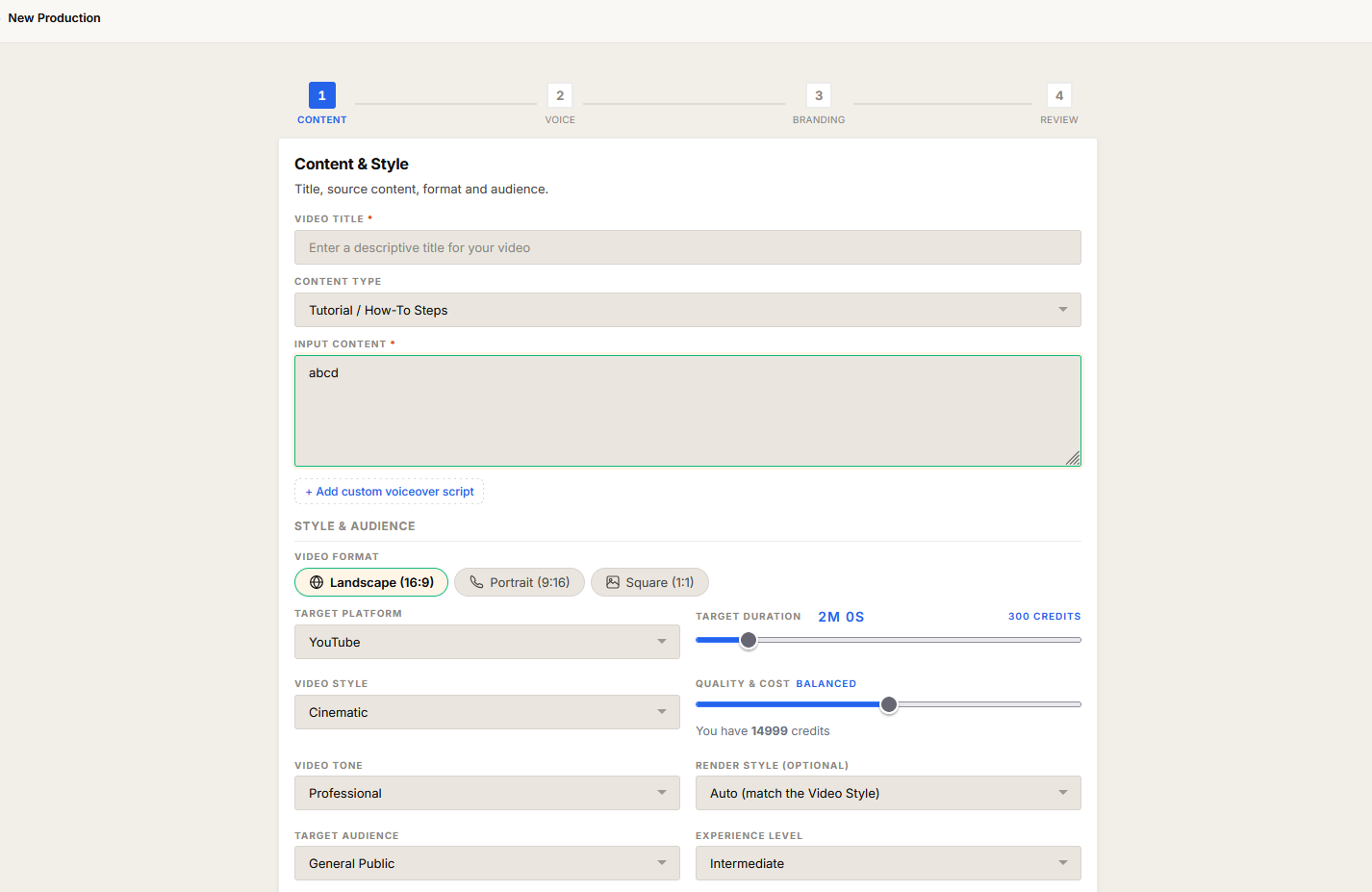
URL / Web Page — the type with extra controls
Choosing URL / Web Page gives you more than a link field. Two extra controls appear:
- Images to extract — a number input from 0 to 10. It tells the wizard how many images to pull from the page. Useful for blog scrapes where the hero image or inline diagrams should carry into the video.
- Import Images from URL — the option that actually performs the image pull from the linked page.
There is also a Strip source content checkbox beneath the content area (shared with the RSS type — see below). Pick URL when the source already lives online and you would rather link than copy-paste — the fetch and the optional image import happen for you.
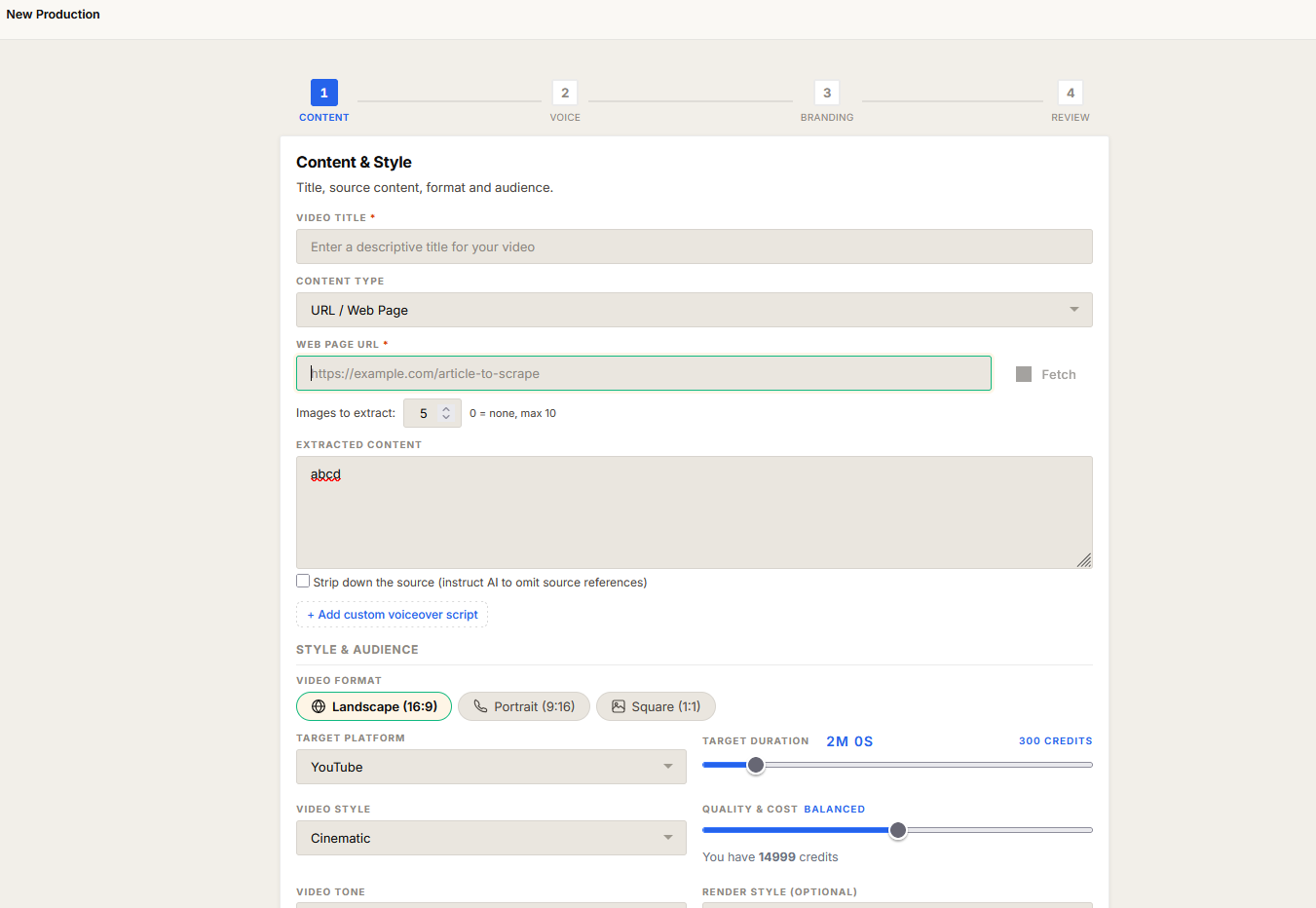
RSS Feed and the Strip source content checkbox
RSS Feed is a two-part choice: first pick a feed from your feed library, then pick a specific item from the preview list that appears. The chosen item is then distilled much like an Article. It is the type to use when you produce recurring videos from a publication you follow.
Both URL and RSS share the Strip source content checkbox. When ticked, it discards page boilerplate — navigation, footers, cookie banners, related-post blocks — so the AI works from the article body instead of the page's furniture. Leave it on for most blog and news sources; turn it off only if the "boilerplate" actually carries content you need.
PDF / Image Upload
PDF / Image Upload takes one file — a PDF or an image — as the source material itself. This is distinct from the optional Input Media drop zone in Step 3, which adds supporting assets to a production whose source is defined elsewhere. Here the file is the source. For anything deeper than a single source file — supporting footage, multiple reference images, file-by-file enhancement instructions — see our dedicated post on media handling, linked below.
Picking the right type, fast
Three questions resolve almost every case:
- Where does the content live? A file → PDF / Image Upload. A web page → URL / Web Page. A feed → RSS Feed. Otherwise it's one of the text types.
- How finished is the wording? Final → Pre-written Script. Long-form draft → Article / Blog Post. Just beats → Bullet Points / Outline. Nothing yet → Topic / Idea.
- What is the video for? Teaching a procedure → Tutorial / How-To Steps. Selling a product → Product Information.
When two types both seem to fit, pick the one whose intent matches the video, not just the one whose input format matches your text — the AI tunes its output to the type, not only to the words.
Two related paths, covered separately: if you want to create many productions at once from a structured file, that is Bulk Import from JSON — a UI-only path that does not run through these nine Content Types. See the JSON import post. For supporting footage, reference images, and per-file AI enhancement, see the media input post.
Further reading
- The Create Wizard — every field of all four steps, in order.
- Bulk Import from JSON — creating many productions from one structured file.
- Adding your own media — supporting footage, images, and per-file enhancement.
Got a source? Start the pipeline
Whichever of the nine types fits what you have, the finish line is identical: a publish-ready video you approve phase by phase. Create a free account and feed it your first one.
Get Started Free