

Bulk-importing productions from JSON
Filling in the Create Wizard one production at a time is fine for a single video. It is a chore for twenty. The Bulk Import from JSON content type lets you describe a whole batch of productions in one file, validate it, and create them all as drafts in a single pass — and every one is still a full five-phase production you approve, not a shortcut version. It is the closest StudioCut gets to running a production pipeline from a spreadsheet. Here is exactly how it works.
Where to find it in the Create Wizard
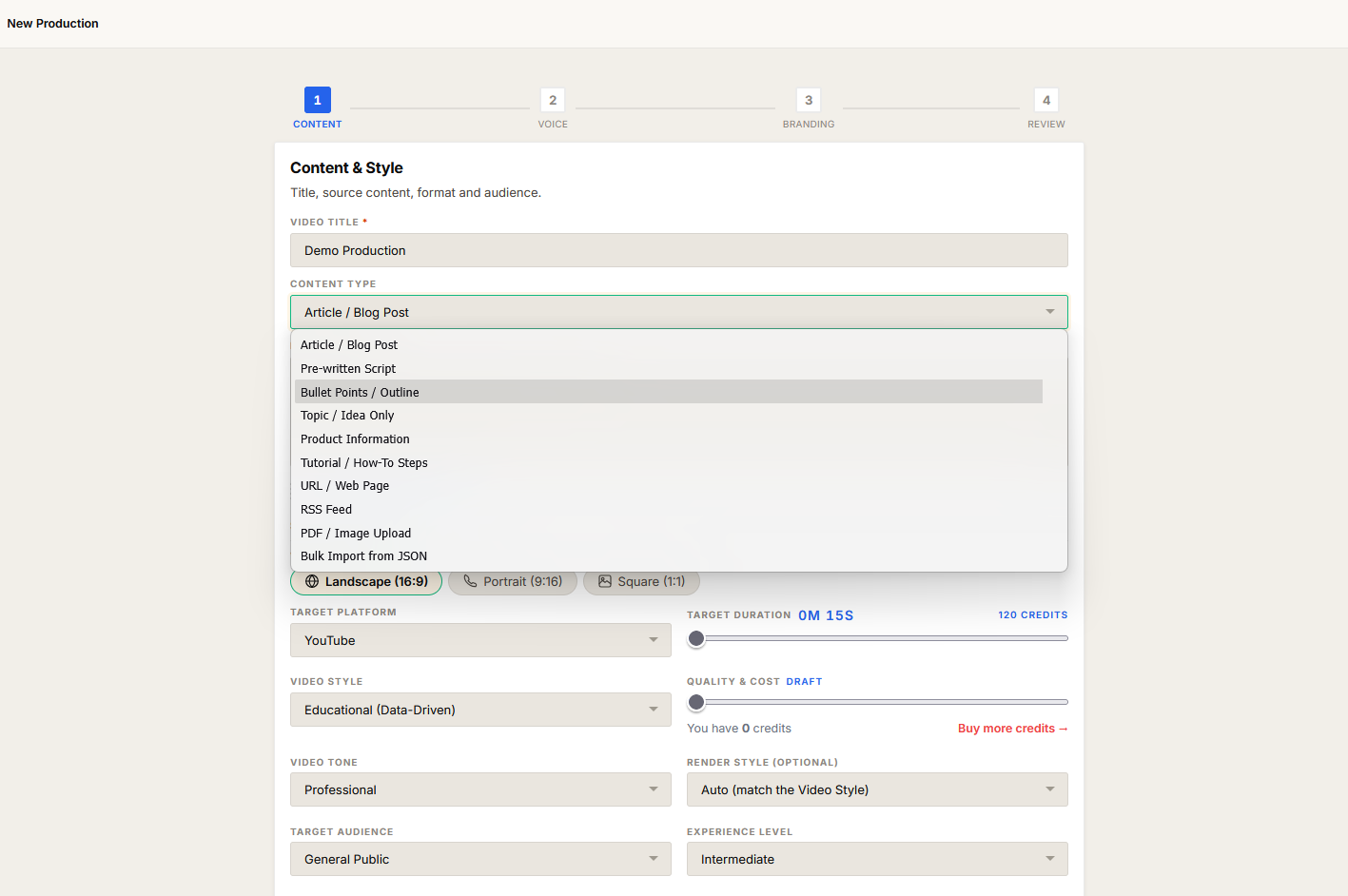
Bulk import is not a separate page — it lives inside the normal Create Wizard. Open the wizard as usual and look at the Content Type dropdown at the top of the first step. Alongside Article / Blog Post, URL, RSS Feed and PDF, you will see an entry labelled Bulk Import from JSON.
Selecting it does not change the form — it opens the bulk import modal. This is the only purpose of that option: json_import is a UI-only content type. It is never saved on a production and never sent to the server. Every production the importer creates is stored as a normal Article / Blog Post. If you open the modal and then close it without importing anything, the wizard quietly reverts the dropdown to whatever content type you had selected before — so opening the modal to look around never disturbs work you had in progress.
There are two outcomes once you have valid JSON. If your file describes a single production, the importer drops its values straight into the wizard form and closes the modal, so you continue exactly as if you had typed them by hand. If it describes a batch, you get a preview grid of every item and a one-click create that produces all of them as drafts. The same file format and the same rules apply to both.
Start with the template
Do not write the JSON from memory. The modal has a Download template button that saves a file called studiocut_production_import_template.json. It contains one fully-filled example production plus two helper blocks:
_readme— a short, plain-English explanation of the accepted root shapes and the headline rules: every key exceptnameandinput_contentis optional, every imported production is created as an Article / Blog Post, URL / RSS / PDF sources and input media cannot be attached, unknown keys are ignored, selection fields must use the listed codes, colors must be hex, and duration is in seconds. It is the same summary you are reading here, shipped inside the file._allowed_values— the exact codes every selection field accepts: the two voice providers, the speed and pitch sets, the full language list, the three video formats, every target platform, and the complete style / tone / audience / experience-level / music-mood vocabularies, plus the numeric ranges forvoice_excitementandtarget_duration. Treat this block as the source of truth — if a code is not in it, it is not valid.
Both keys start with an underscore. The importer skips any key beginning with _, not just these two, so you can leave _readme and _allowed_values in the file as a permanent reference — they are ignored, never imported, and never cause an error. The recommended workflow: edit the single example under productions, duplicate that object once per video you want, change the fields that differ, and delete the keys you do not need (they fall back to server defaults). That gives you a valid import file without ever guessing at a field name.
The three accepted root shapes
The importer is deliberately forgiving about how you structure the file. The JSON root may be any one of these:
| Root shape | When to use it |
|---|---|
| A single production object | One production. Recognised when the object has a name, input_content, video_title or content key. |
| An array of production objects | A batch — the array is the list of productions. |
An object with a productions array | A batch — the downloaded template uses this shape. Anything outside productions (like _readme) is ignored. |
If a single production loads, the importer drops its values straight into the wizard form so you can review and continue. If a batch loads, you get a preview grid of all the items before anything is created. Either way the cap is 20 productions per import — a larger batch is rejected with a clear message telling you how many it found.
The schema the importer understands
Only two fields are required on every item: name (the video title, up to 500 characters) and input_content (the topic text or article the video is built from, up to 50,000 characters). Everything else is optional — leave a field out, or set it to an empty string, and the server applies its default. There is no penalty for omitting fields; a two-key object is a perfectly valid production.
The importer normalises every key before matching it: keys are lower-cased and runs of spaces or hyphens become a single underscore. So "Voice Name", Voice-Name, voice-name and voice_name all resolve to the same field. On top of that it accepts a set of friendly aliases, so the names you would naturally reach for still land on the right field:
| You can write | It maps to |
|---|---|
title, video_title | name |
content | input_content |
script | voiceover_script |
voice_name | ai_voice_name |
excitement, excitement_intensity | voice_excitement |
format | video_format |
platform | target_platform |
duration, duration_seconds | target_duration |
language | output_language |
style / tone / audience / music | video_style / video_tone / target_audience / music_mood |
look, video_look (legacy) | translated into content_format + render_style — an old format code (e.g. documentary) becomes the content_format; an old medium code (e.g. anime) becomes content_format: "cinematic" with render_style set to that medium; custom_look_description / custom_video_look land in custom_content_format |
experience_level | audience_experience_level |
brand | brand_name |
cta | call_to_action |
primary_color / secondary_color / accent_color / background_color / text_color | the matching brand_color_* field |
heading_font / body_font | brand_font_heading / brand_font_body |
Any key it does not recognise after normalisation and aliasing is simply dropped — it never causes an error, so leftover notes or fields from another tool do no harm.
The fields you will use most often, and what each one does:
- Voice.
voice_providerpicks the engine —geminiorelevenlabs.ai_voice_nameis the specific voice code; an unknown value here is a warning, not an error (see below).voice_speedis one ofslow,normal,fast,very_fast.voice_pitchislow,normalorhigh.voice_excitementis an integer from 0 (flat, measured) to 5 (high energy).voiceover_scriptlets you supply your own narration verbatim instead of letting the AI write it. - Output.
output_languageis the language the video is produced in;content_languageis the language of the source you provided ininput_content(often the same). Both accept the full code list in_allowed_values(en,es,fr,de,hi,ja,zh, … 24 in total).video_formatislandscape,portraitorsquare.target_platformis one ofyoutube,youtube_shorts,instagram_reels,tiktok,facebook_storiesormulti_platform.target_durationis the desired length in seconds — any integer from 5 to 900; the server clamps it to the chosen platform's and your plan's real limits at render time, so an over-long value is corrected, not rejected. - Creative direction.
video_style(e.g.tutorial,explainer,listicle,storytelling,case_study…),video_tone(professional,casual,humorous,inspirational…),content_format(what kind of media the video is —documentary,explainer,vlog,whiteboard…),render_style(the art medium it is drawn in —anime,watercolor,pixel_art…; omit it and the pipeline picks the format's natural default),target_audience(students,developers,business,marketers…),audience_experience_level(beginner→advanced, pluskids,teens,mixed), andmusic_mood(upbeat,calm,cinematic,lo_fi,none…). Each of these also acceptscustom— covered in the next section. - Branding.
brand_nameandcall_to_actionare free text. The five color fields —brand_color_primary,brand_color_secondary,brand_color_accent,brand_color_background,brand_color_text— each take a hex string.brand_font_headingandbrand_font_bodyname the typefaces. Branding fields your plan does not include are silently skipped, exactly as they would be for a single hand-made video. - Misc.
special_requirementsis a free-text note passed through to the pipeline for anything the structured fields do not cover.
What you cannot set via JSON: the content type is always forced to Article — you cannot import URL, RSS or PDF sources, and input media files cannot be attached. brand_library_id presets and additional_languages multi-language batch fan-out are ignored if present. System fields like id, state and user_id are stripped for safety even if you include them. Add anything in this list after import by editing the draft.
Custom inputs, selection codes and hex colors
Selection fields must use the exact codes from the _allowed_values block — for example video_format accepts landscape, portrait or square, and nothing else. But the fields that support free-form direction — video_style, video_tone, content_format, render_style, target_audience, audience_experience_level and music_mood — also accept the literal code custom. There are two ways to use it:
- Explicit. Set the field to
"custom"and supply the matching description field yourself:video_style: "custom"together withcustom_video_style: "vintage Super-8 film grain". The description is then required — acustomparent with a blank or missing description is a validation error, and a description that is only digits ("12345") is rejected too. - Automatic. Supply a value that is not in the allowed list and the importer redirects it for you:
video_style: "vintage film grain"silently becomesvideo_style: "custom"withcustom_video_style: "vintage film grain". You never have to know the fallback field name — anything off-list on a custom-capable field just works.
Each description field has its own length cap; over-length text is trimmed in place rather than rejected:
| Selection | Description field | Max length |
|---|---|---|
video_style | custom_video_style | 35 |
video_tone | custom_video_tone | 35 |
content_format | custom_content_format | 400 |
render_style | custom_render_style | 400 |
target_audience | custom_audience_description | 200 |
audience_experience_level | custom_audience_experience_level | 35 |
music_mood | custom_music_mood | 200 |
Color fields must be valid hex — either 3 or 6 digits with a leading #, like #667eea or #fff. Anything else is a validation error reported against the specific field. An unknown ai_voice_name is treated more gently: it is a warning, not an error. The field is dropped, the import still proceeds, and the production uses the default voice — the modal surfaces the warning so you know, and you can pick the right voice later via Edit.
A comprehensive example file
Here is a realistic batch of three productions using the productions-array shape. The first item is fully populated with proper values for every common field. The second uses custom inputs (custom style, tone, audience and music) and friendly aliases (title, content, platform, cta, primary_color) to show those resolve correctly. The third is minimal — only the two required fields, everything else defaulted by the server:
{
  "productions": [
    {
      "name": "5 Spreadsheet Tricks That Save You an Hour a Day",
      "input_content": "A practical walkthrough of five techniques: named ranges for readable formulas, Flash Fill for instant column splitting, conditional formatting for at-a-glance status, pivot tables for one-minute summaries, and the ten keyboard shortcuts that replace the most mouse travel. Each trick includes a concrete before/after example.",
      "voiceover_script": "",
      "output_language": "en",
      "content_language": "en",
      "voice_provider": "elevenlabs",
      "ai_voice_name": "rachel",
      "voice_speed": "normal",
      "voice_pitch": "normal",
      "voice_excitement": 3,
      "video_format": "landscape",
      "target_platform": "youtube",
      "target_duration": 180,
      "video_style": "tutorial",
      "video_tone": "friendly",
      "target_audience": "business",
      "audience_experience_level": "intermediate",
      "music_mood": "corporate",
      "brand_name": "Acme Productivity",
      "call_to_action": "Subscribe for a new spreadsheet tip every Tuesday.",
      "brand_color_primary": "#2563eb",
      "brand_color_secondary": "#ffffff",
      "brand_color_accent": "#f59e0b",
      "brand_color_background": "#0f172a",
      "brand_color_text": "#e2e8f0",
      "brand_font_heading": "Montserrat",
      "brand_font_body": "Open Sans",
      "special_requirements": "Show real spreadsheet UI on screen for every trick; no stock office footage."
    },
    {
      "title": "The Untold Story of the First Pivot Table",
      "content": "A narrative explainer tracing pivot tables from 1991 spreadsheet history to the everyday analyst's most-used tool, told as a short documentary-style story with three turning points.",
      "platform": "youtube_shorts",
      "format": "portrait",
      "duration": 50,
      "video_style": "vintage documentary with archival newspaper cutaways",
      "video_tone": "warm and slightly nostalgic, like a museum audio guide",
      "target_audience": "data analysts who think spreadsheets are boring",
      "music_mood": "soft acoustic with a hopeful build in the final third",
      "audience_experience_level": "custom",
      "custom_audience_experience_level": "knows Excel basics, new to data history",
      "voice_provider": "gemini",
      "ai_voice_name": "kore",
      "voice_excitement": 2,
      "brand": "Acme Productivity",
      "cta": "Full version on our channel.",
      "primary_color": "#7c3aed"
    },
    {
      "name": "What Is a Pivot Table? A 60-Second Primer",
      "input_content": "A beginner-friendly explainer: what a pivot table is, the one problem it solves, and a single worked example summarising 500 sales rows into a 3-row answer."
    }
  ]
}
Item two is worth reading closely. Every aliased key (title, content, platform, format, duration, brand, cta, primary_color) resolves to its canonical field. The off-list video_style, video_tone, target_audience and music_mood values are automatically redirected into their custom_* description fields, while audience_experience_level uses the explicit custom + custom_audience_experience_level pairing. Both styles of custom input are valid and can be mixed freely within one item.
Paste or upload — and the size cap
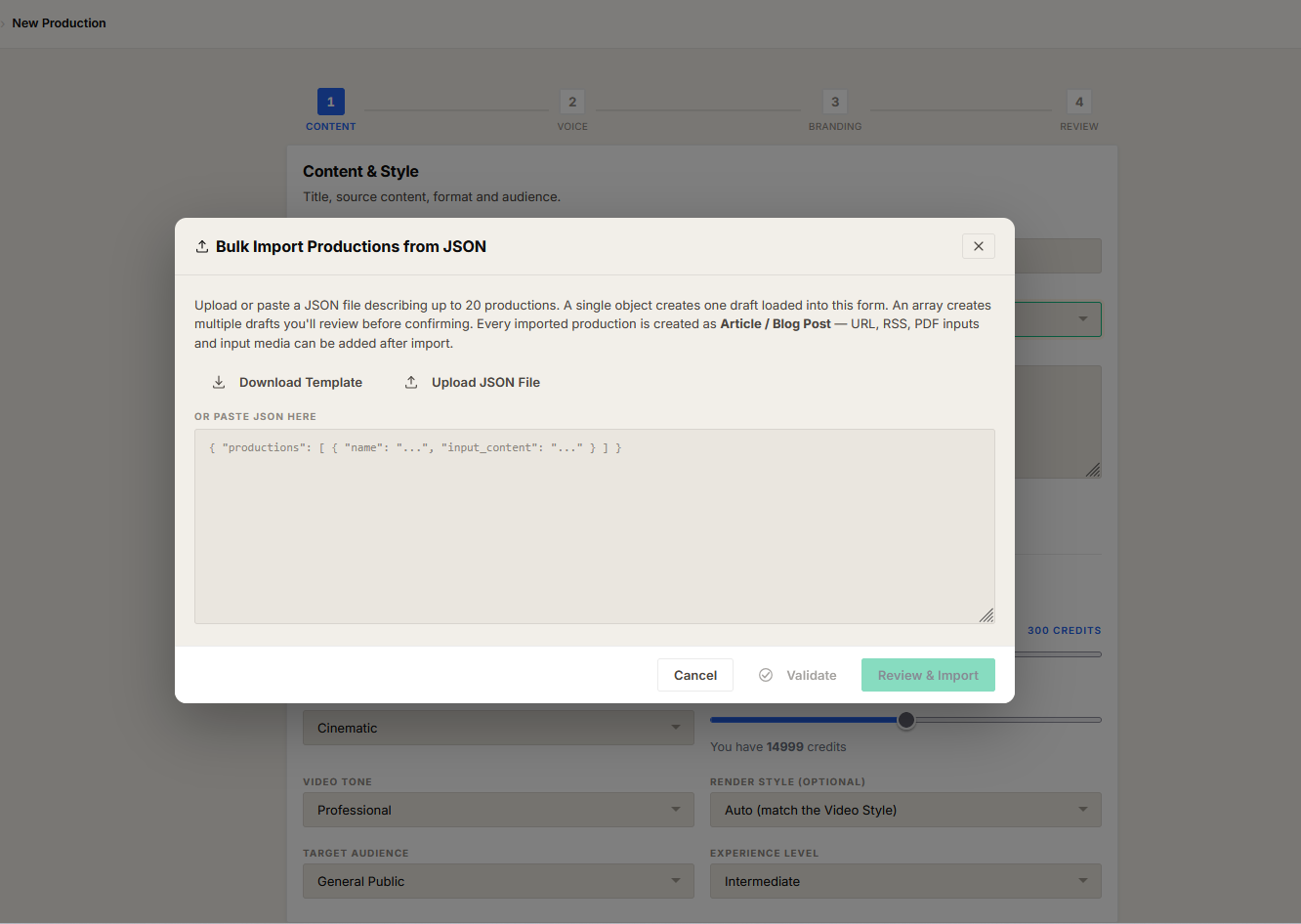
The modal gives you two ways to get JSON in. You can paste the text directly into the input box, or use the file picker to upload a .json file — uploading just reads the file's contents into the same text box. Either way the total size is capped at 2 MB. A larger file, or pasted text longer than 2 MB, is rejected before parsing with a message stating the limit. A file that is not JSON is also refused up front.

Validation and the errors it reports
Nothing is created until you have validated the input. When you trigger validation the importer parses the JSON and checks every item independently, so one bad row never blocks the good ones. Each item is marked valid or invalid, and you see a count of how many of each.
The errors are specific and prefixed with the offending item's number and name (e.g. Item #3 (What Is a Pivot Table?): …), so you know exactly which row and which field to fix. The messages you will actually see, and what triggers each:
name is required./input_content is required.— the field is missing, empty, or whitespace-only after trimming. These are the only two truly mandatory fields.name must be 500 characters or fewer.— the title is too long; shorten it.input_content exceeds 50,000 characters.— the source text is over the hard limit; split the topic or trim it.brand_color_primary must be a hex color like #667eea— the value is not a 3- or 6-digit hex with a leading#. The same message form applies to each of the five color fields.video_format must be one of: landscape, portrait, square— an off-list value on a selection field that has no custom option. Fields that do have one never produce this; they redirect instead.voice_excitement must be an integer between 0 and 5.— non-integer, negative, or above 5.target_duration must be between 5 and 900 seconds.— outside the absolute bounds. (Values inside the bounds but above your platform/plan limit are not an error — they are clamped server-side at render time.)Custom video style is required when video_style="custom".— you set a selection tocustombut left its description blank. A description that is digits-only ("2024") produces… cannot be numeric only.instead.<field> must be a string.— a text field (name, script, brand name, fonts, …) was given a number, array or object instead of a string.
Warnings — like an unrecognised voice name — are listed separately and do not stop the import. You can only proceed once every item is valid; invalid rows must be fixed in the JSON, or removed from the preview grid, first.
It expands into normal productions
Bulk import is just a faster way in — not a different kind of production. Each item in your file becomes an ordinary draft production, exactly as if you had filled in the wizard by hand, one at a time, for every one of them. Branding fields your plan doesn't include are simply skipped, just as they would be on a single video. Everything downstream behaves identically — so a batch of twenty costs you nothing in extra learning, only saved time.
Once the batch finishes you land on your Productions list with the new drafts waiting. If some items succeed and others don't, the modal stays open and shows you exactly which failed and why, so you fix and retry only those — never the whole batch again.
The one-sentence version: describe your productions in a file built from the downloadable template, validate it in one click, and every item becomes a normal draft production — the same videos you'd make by hand, just dozens at a time instead of one.
Further reading
- What to write in the text box — how to get the best video from your
input_content. - How It Works — what happens to each draft after it is created.
- One script, every aspect ratio — bulk import is also the lever for producing several formats from one source.
- Help Center — step-by-step guides for the full wizard.
Produce a batch, not a backlog
One file in, twenty draft productions out — each a finished video you review phase by phase. Create a free account and run your first batch.
Get Started Free